

Chapter 6.2 - Lighting
(a) Set up Lighting
Light Switch
Light switches and lights connect via a channel number. This allows you to match switches to lights.
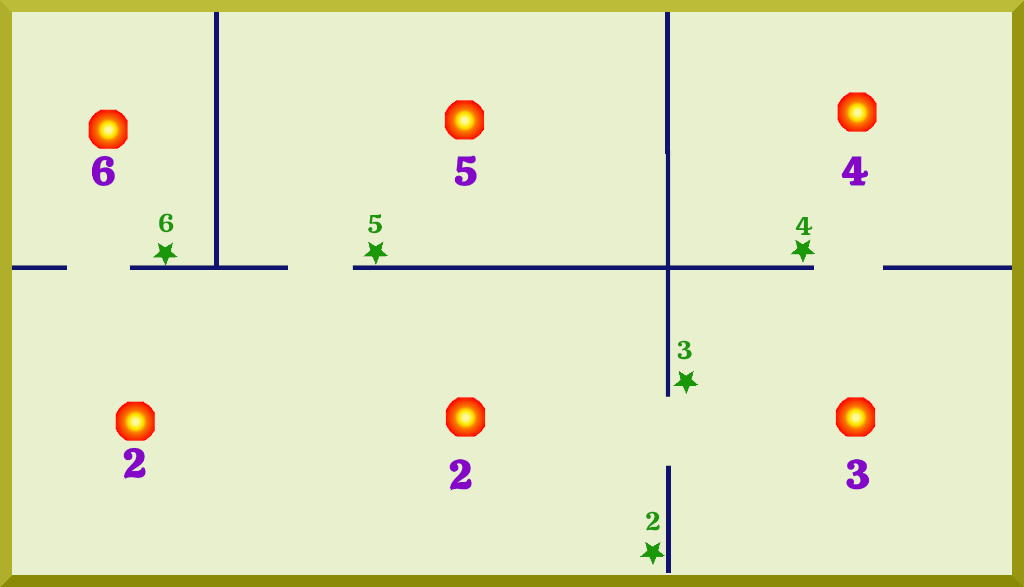
As an example look at the room layout here. Here we have one bulb and one switch in every room apart from the largest room that has two bulbs and one switch. We set the channel number to be the same (6, 5, 4 etc.) in both the light and in the matching switch. So switch 2 will turn on or off two bulbs, whilst all the other switches just operate one. To set up the channel, edit the confit notecard in the switch and also in the corresponding light(s). As well as the channel there are also other options that you can set as described below:
# Set to 0 for no float text
SHOW_TXT=1
# If set to 1, will turn off lights when no one within range
SENSOR_MODE=0
# Distance to scan (radius in m) if sensor mode is 1
SENSOR_DISTANCE=15
# Set to 1 to auto-connect to region power grid
ON_GRID=1
## What fuel object to accept if not connected to power grid
FUEL_NAME=SF kWh
## All bulbs are set to 0 as default, but change to 1, 2, 3  etc to match switches to light bulbs
CHAN=0
## Default language
LANG=en-GB
Menu options
This will attempt to connect the switch to the region power grid and will then take all the power it requires (assuming the grid has enough reserves) from there.
This will make the system 'self-contained' and it will need manually topping up with SF kWh when the level gets low (like a ‘pay as you’ go system).
If set to auto mode, the light will turn on at night time and off during the day.
In manual mode, light is turned on or off via the switch.
Turn lights on or off. Not shown if in Auto mode or if the switch has no power.
If sensor is active, the light will automatically turn off after around 10 minutes if no avatar is nearby.
Select language
Indicator light
There is a small indicator above the switch that shows the status of the switch.
|
|
No energy |
|
Sensor ON |
|
|
Manual mode |
|
Auto mode |
|
|
Not on Grid |
|
Connected to Grid |
|
COMBINATIONS |
|||
|
|
Not on Grid, Manual mode, Sensor Off |
||
|
|
No energy (not on grid), Manual mode, Sensor Off |
||
|
|
Not on Grid, Manual mode, Sensor On |
||
|
|
No energy (not on grid), Manual mode, Sensor On |
||
|
|
Not on Grid, Auto mode |
||
|
|
No energy (not on grid), Auto mode |
||
|
|
Connected to Grid, Manual mode, Sensor Off |
||
|
|
Connected to Grid, Manual mode, Sensor On |
||
|
|
Connected to Grid, Auto mode |
||











Lightbulbs / Lights
As above you can edit the CONFIG notecard to match the bulb to a switch and can also set other configuration options as shown below:
# Set this to match the CHAN in the light switch
#  0 is the default.
CHAN=0
#
# Brightness of bulb from 1 (minimum) to 10 (maximum)
BRIGHTNESS= 9
#
# Colour of the light
COLOR= <0.9, 0.9, 1.0>
#
# Optional light settings
#    Radius: Specifies how far the light travels, in meters. The maximum is 20 m
#    Falloff:  Sets how quickly the light's Intensity fades as it travels to its outer Radius. Lower values are more gradual. Range is 0.01 to 2.0
RADIUS=20
FALLOFF=0.01
Set the CHAN= value to match the channel for the switch that controls it
You can also set the brightness and colour of the bulb. To find a particular colour (see http://wiki.secondlife.com/wiki/Category:LSL_Color for some examples) In addition there are optional settings for radius and falloff, see http://wiki.secondlife.com/wiki/Category:LSL_Light